Home > How to Check Compensation Information?
How to Check Compensation Information?
The Compensation module provides visibility into organizational budget allocations and individual reward components. From the Employee Portal- Admin View, you can:
-
View budget summaries for salary, bonus, and equity. For details, refer to View Overall Compensation Summary.
-
Drill into specific compensation plans and worksheets. For details, refer to Check Compensation Plan Details.
-
Review and manage compensation statements through their lifecycle stages.For details, refer to Check Compensation Statements.
These capabilities support informed financial planning and transparent compensation management.
View Overall Compensation Summary
Follow the steps below to check the overall compensation information:
-
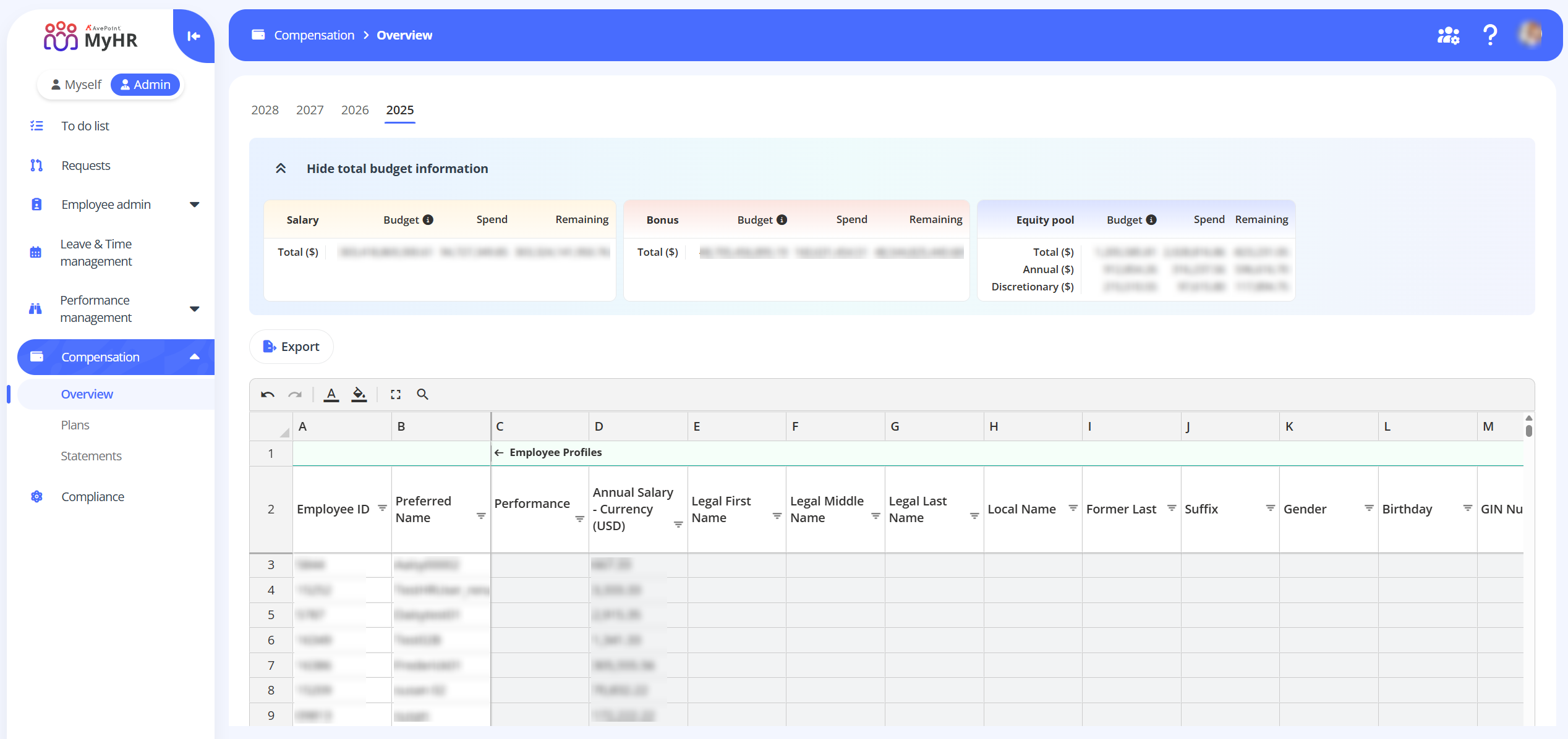
Navigate to Compensation > Overview.
-
Locate the tab of the fiscal year you want to check for. The total budget information for your organization and the detailed employee compensation information are displayed. You can click Export to export the compensation data to an Excel file.
Check Compensation Plan Details
Follow the steps below to check compensation plan details:
-
Navigate to Compensation > Plans. All compensation plans will be listed, and you can use the search box and filters to quickly locate specific items.
-
To view details for a compensation plan, click its name.
-
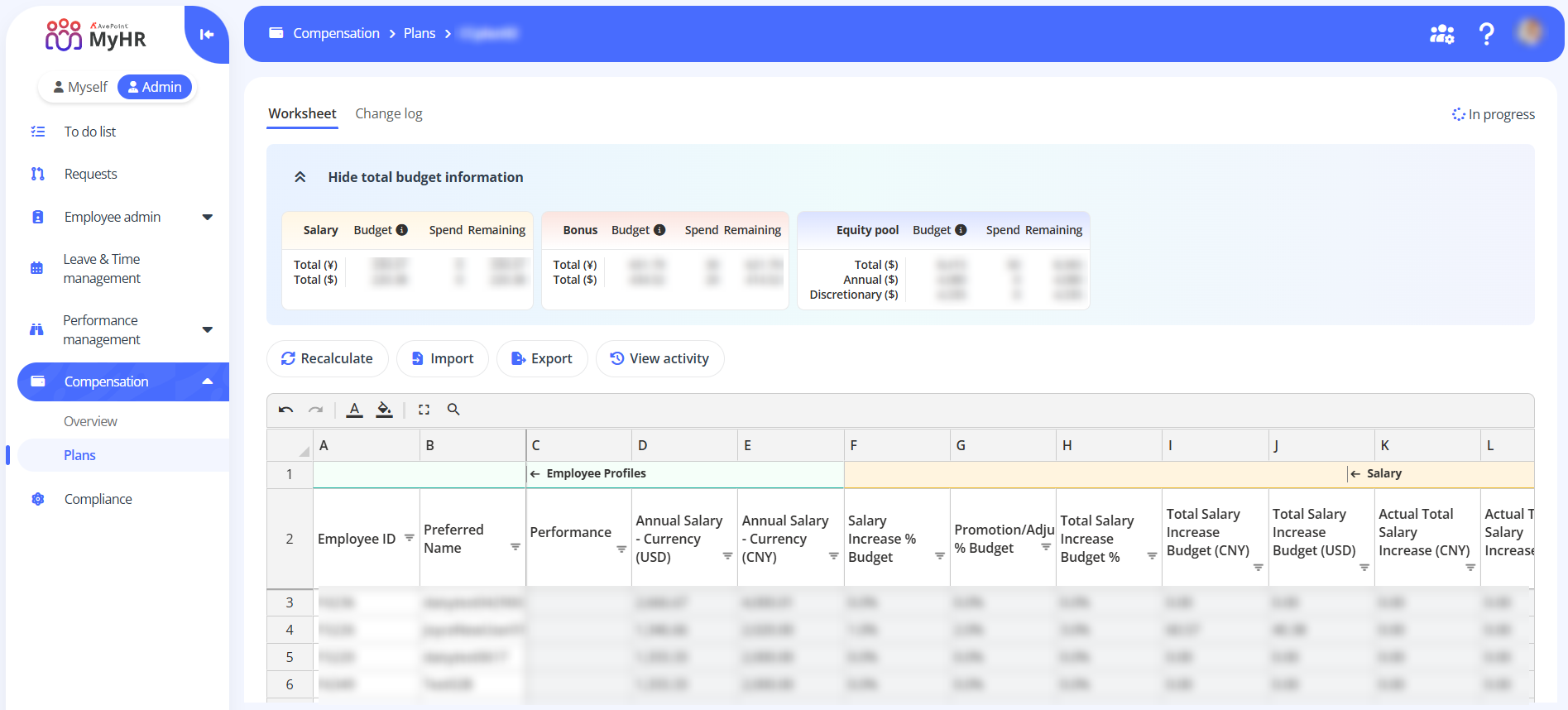
Worksheet – The Worksheet tab displays the detailed information of the compensation plan.
-
Total budget information – You can check the budget information of salary, bonus, and equity pool in the Total budget information section.
-
Worksheet – For the worksheet, you can perform the following actions:
-
Recalculate – Recalculate compensation values in the worksheet.
- To recalculate compensation information for all employees, click Recalculate and select Recalculate compensation for all employees.
- To recalculate compensation information for specific employees, click Recalculate and select Recalculate compensation for specific employees. In the Recalculate compensation budget for specific employees panel, select employees and click Recalculate.
-
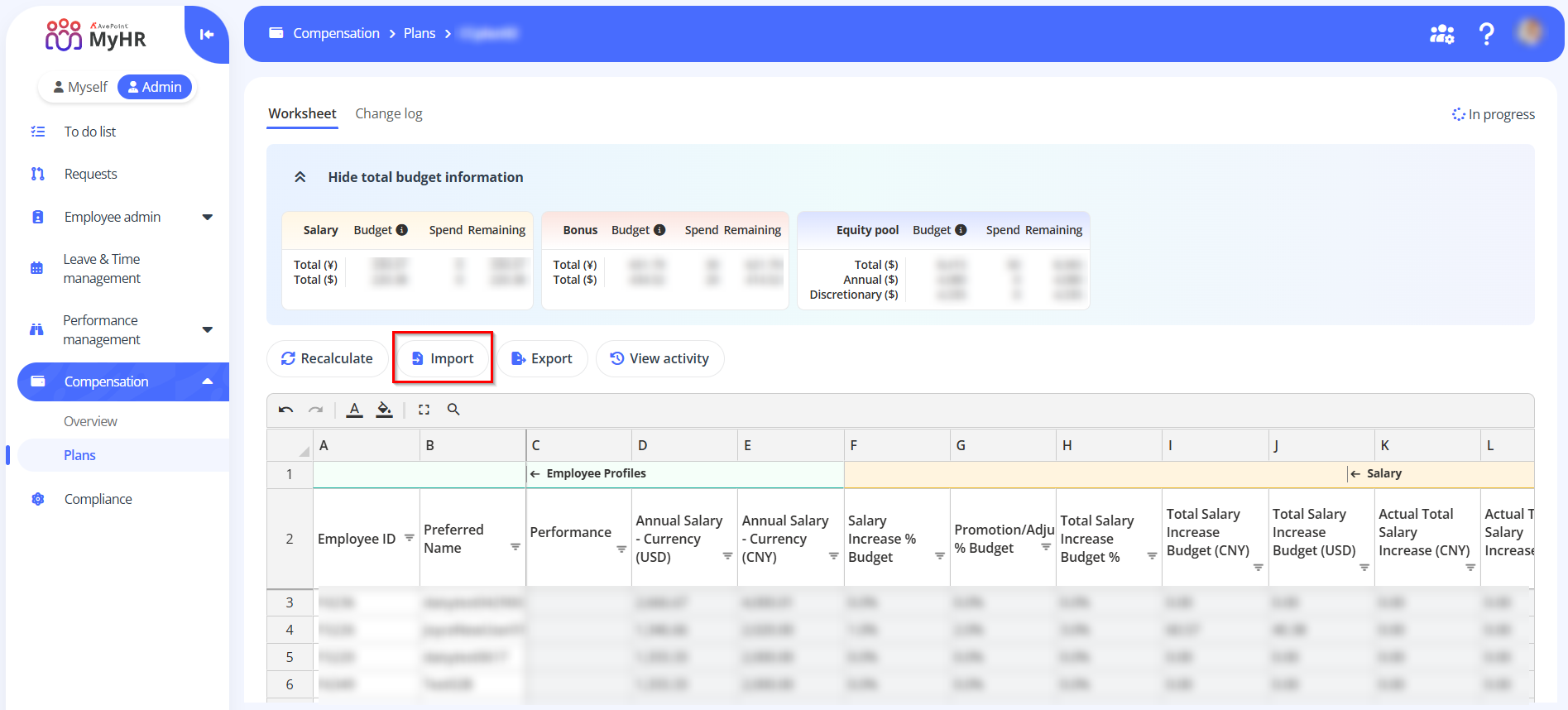
Import – Click Import to bulk update compensation equity eligibility. For details, see Import Compensation Equity Eligibility.
-
Export – Click Export to download the worksheet as an .xlsx file.
-
View activity – Click View activity to check the submission and review history of the compensation plan.
-
Update profile - For completed compensation plans, you can click Update profile to update the finalized compensation details to employee profiles.
-
-
-
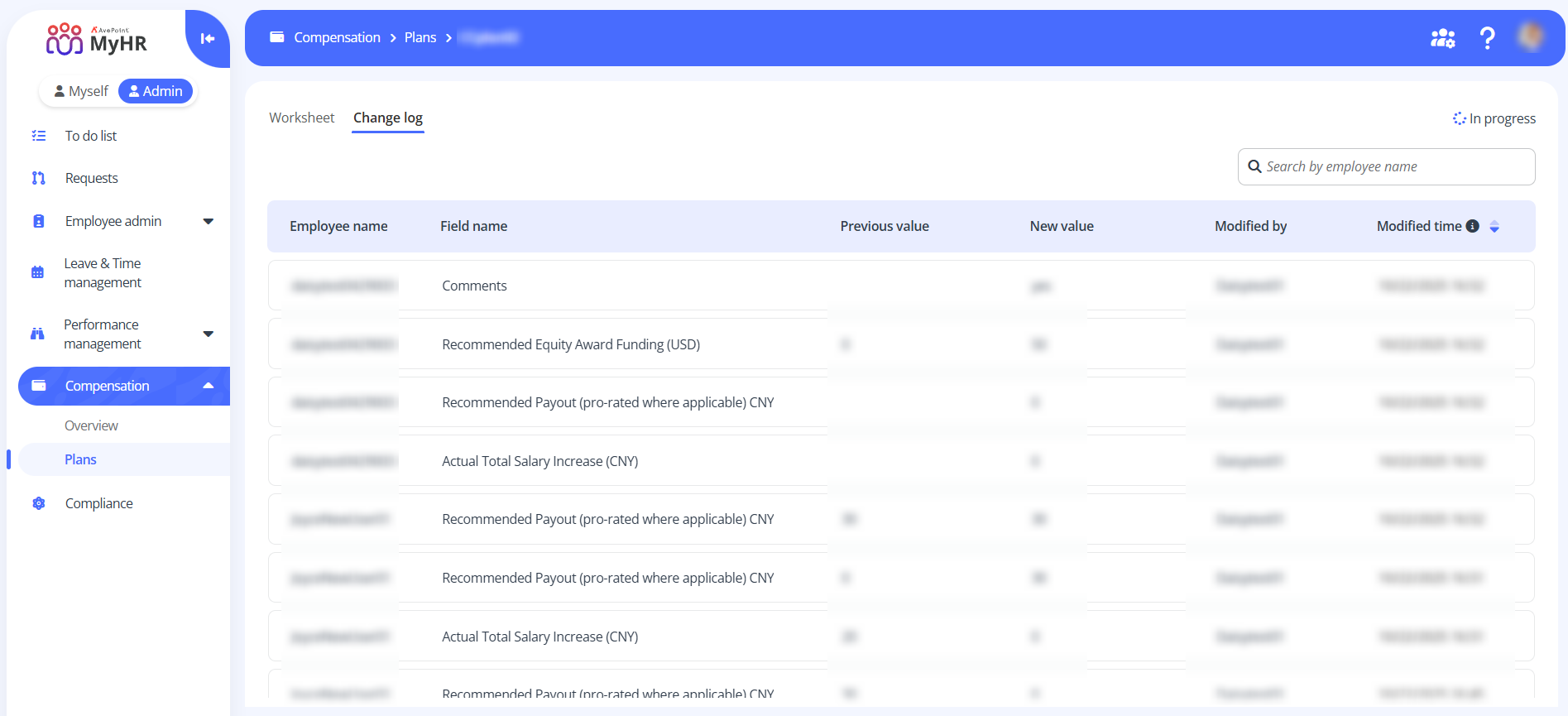
Change log – The Change log tab displays history of all updates to compensation information.
-
Import Compensation Equity Eligibility
Follow the steps below to import compensation equity eligibility information:
-
Navigate to Compensation > Plans > Worksheet.
-
Click Import.
-
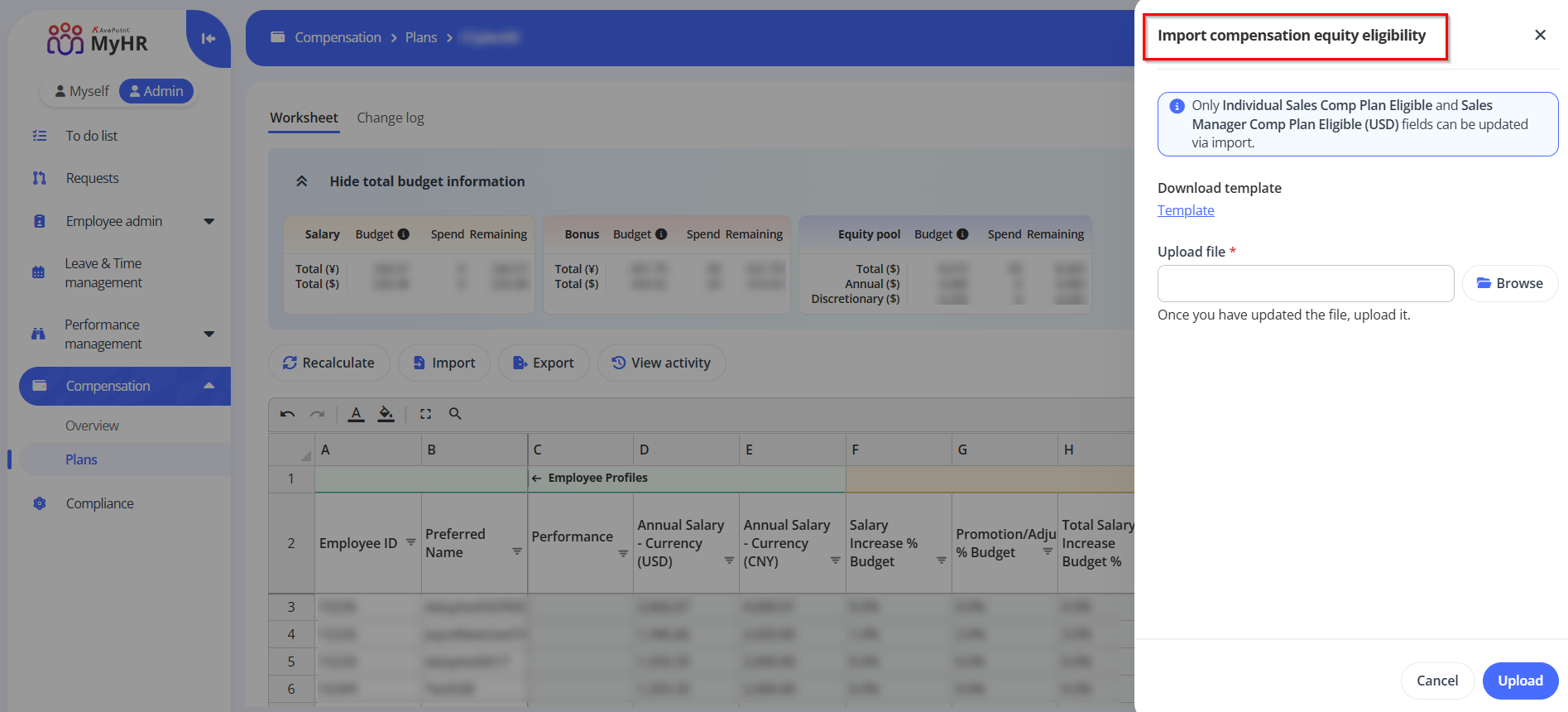
In the Import compensation equity eligibility panel, click the Template link to download the template.
-
Open the downloaded template and update the information as needed.
-
Once you have updated the template, click Browse to upload it.
-
Click Upload.
Check Compensation Statements
Compensation statements are automatically generated upon completion of compensation plans and appear on the Compensation > Statements page. Statements progress through three status stages:
- Pending – Automatically assigned when statements are generated.
- Sent to compensation reviewer – HR staff send statements to compensation reviewers. The status updates accordingly after sending.
- Sent to employee – When receiving the statements sent by HR, compensation reviewers will have face-to-face meetings with employees. After face-to-face meetings, if employees agree with the compensation adjustment, reviewers send statements to employees. The status then updates to Sent to employee.
As a HR, you can perform the following actions:
-
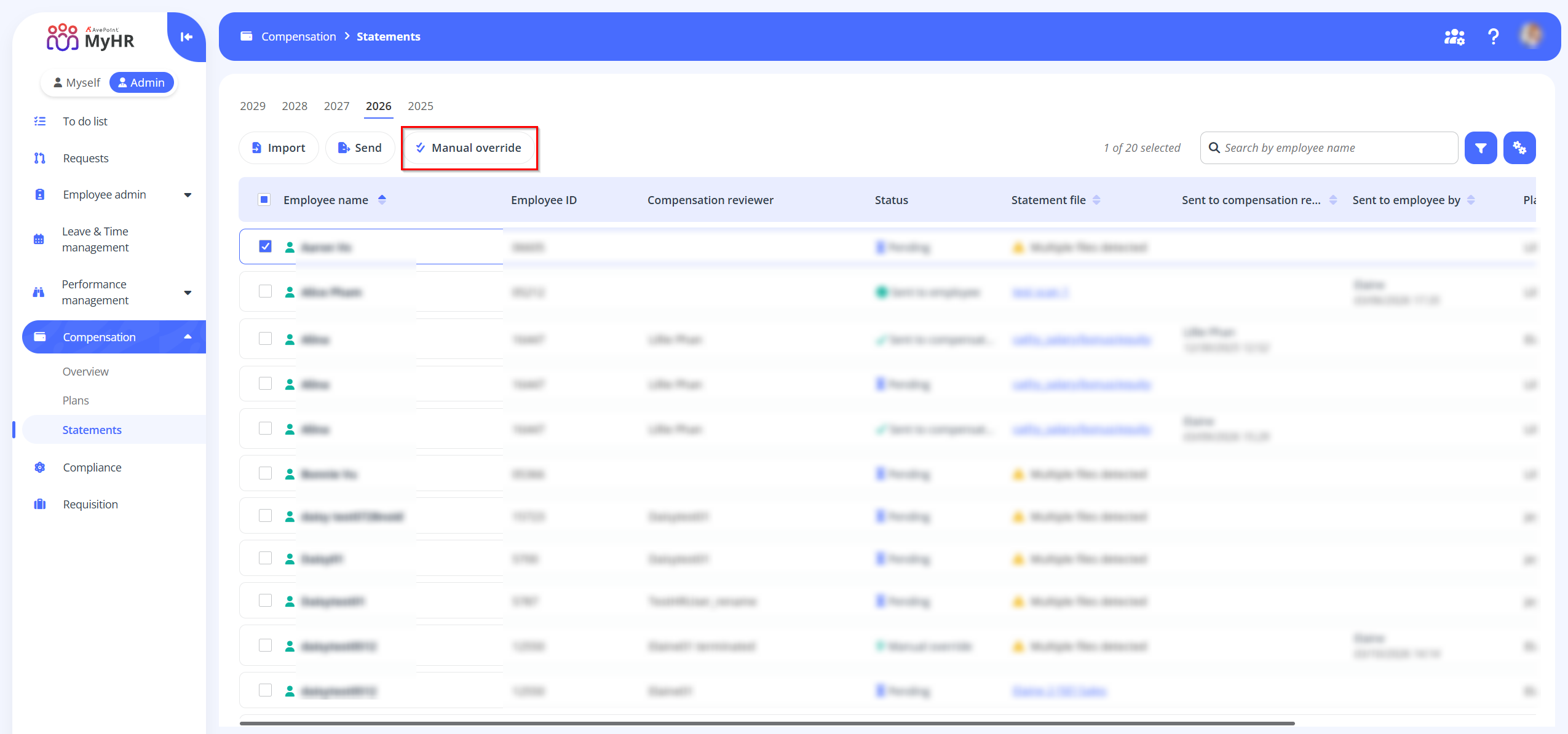
View employees' compensation details - To view compensation details of an employee, click the employee name link. The compensation information will be displayed on the Employee details panel. You can click the statement template file link to preview the statement file.
-
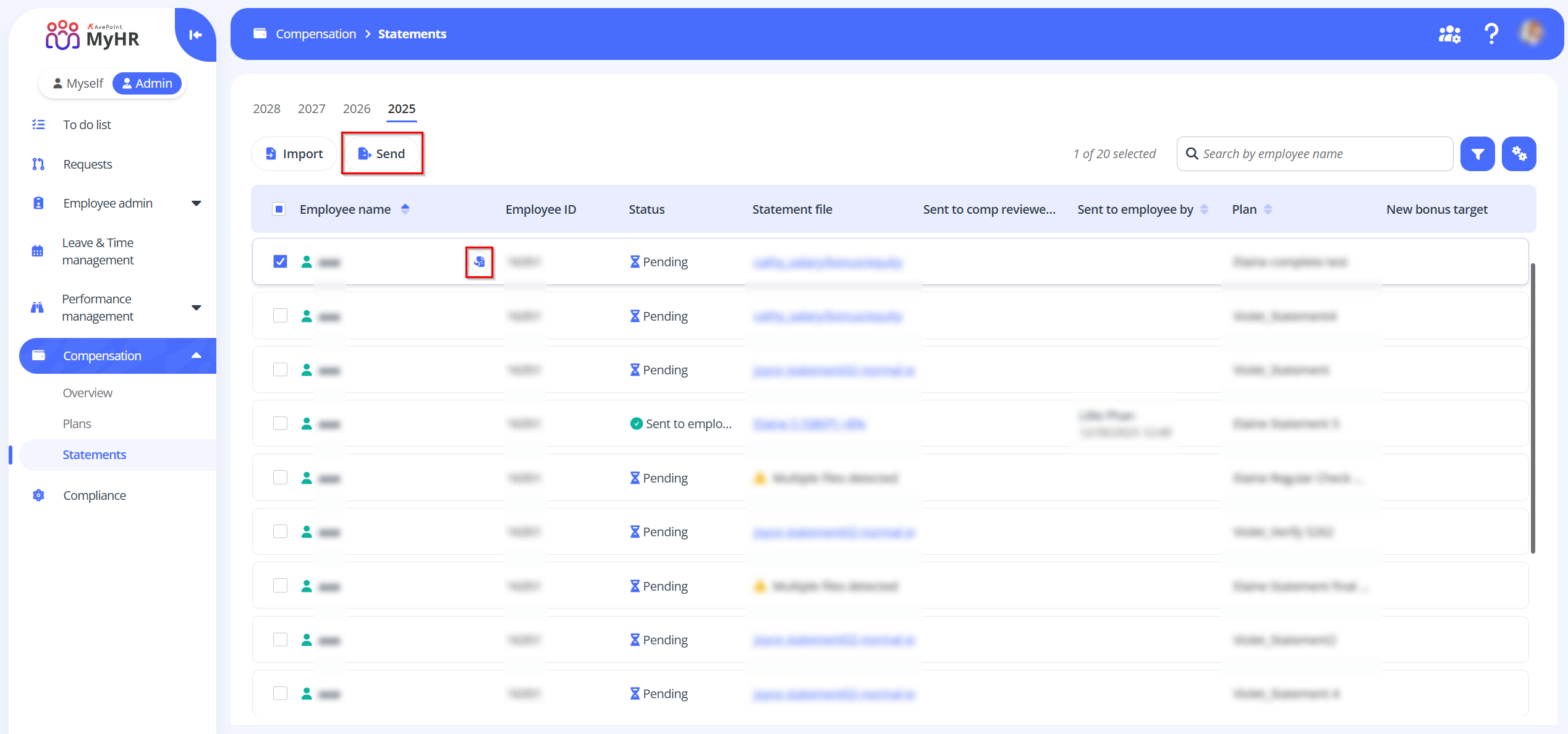
Send statements to compensation reviewer – Employees displayed on this page are set to Pending status by default. After verifying that employees' compensation information is correct, you can send statements to compensation reviewers for employees. To send compensation statements, select an employee and click Send on the command bar, or click the Send button when hovering over the employee row. You can also select multiple employees to process in bulk.
NOTEFor employees with warnings in the Statement file column (indicating multiple files detected or no available statement), click the employee name link to select a statement template before sending.
-
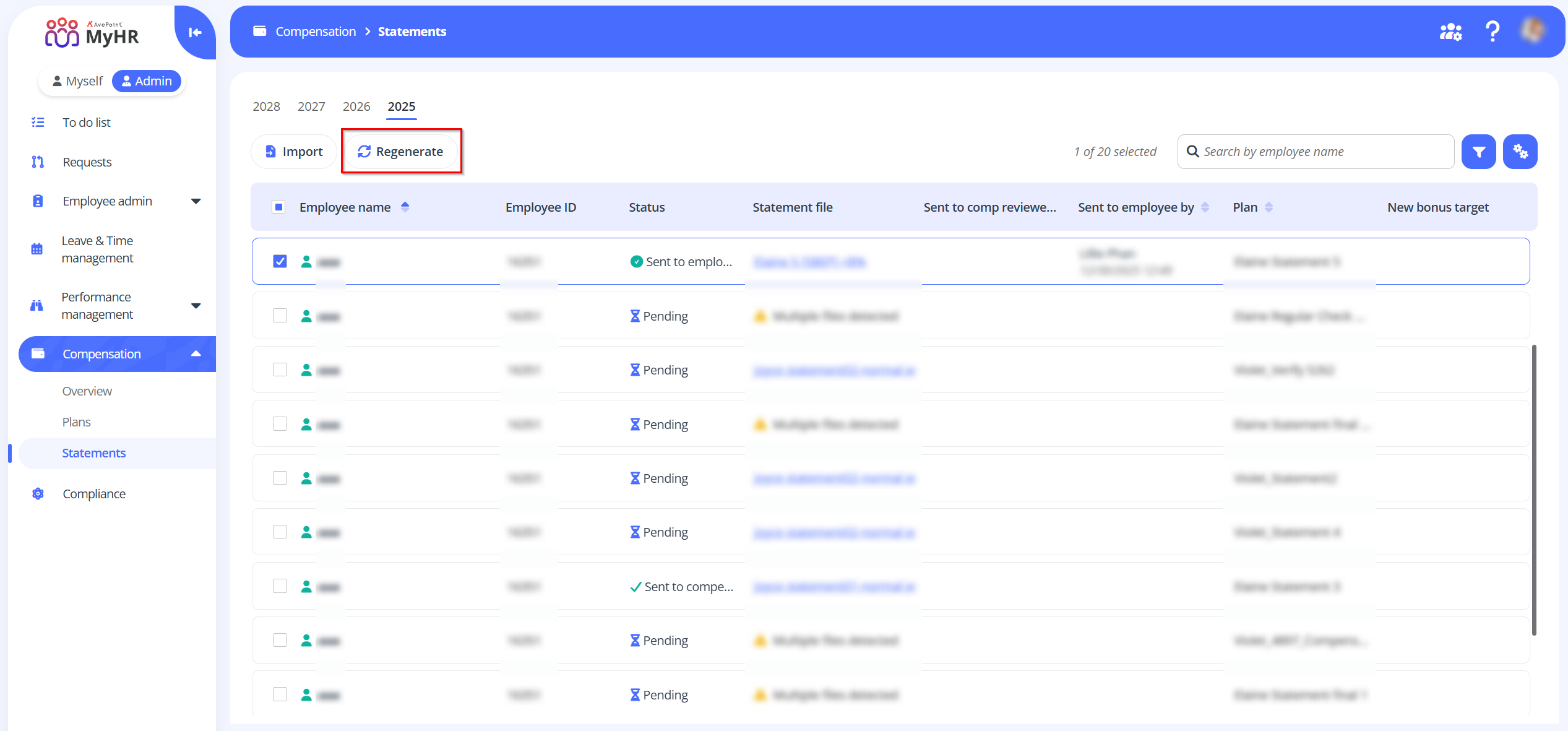
Regenerate statements - To regenerate statements, select an employee and click Regenerate on the command bar. On the Regenerate statement panel, review the compensation information, select a statement template, and then click Send.
NOTEYou can only regenerate statements for employees whose statement status is Sent to compensation reviewer or Sent to employee.
-
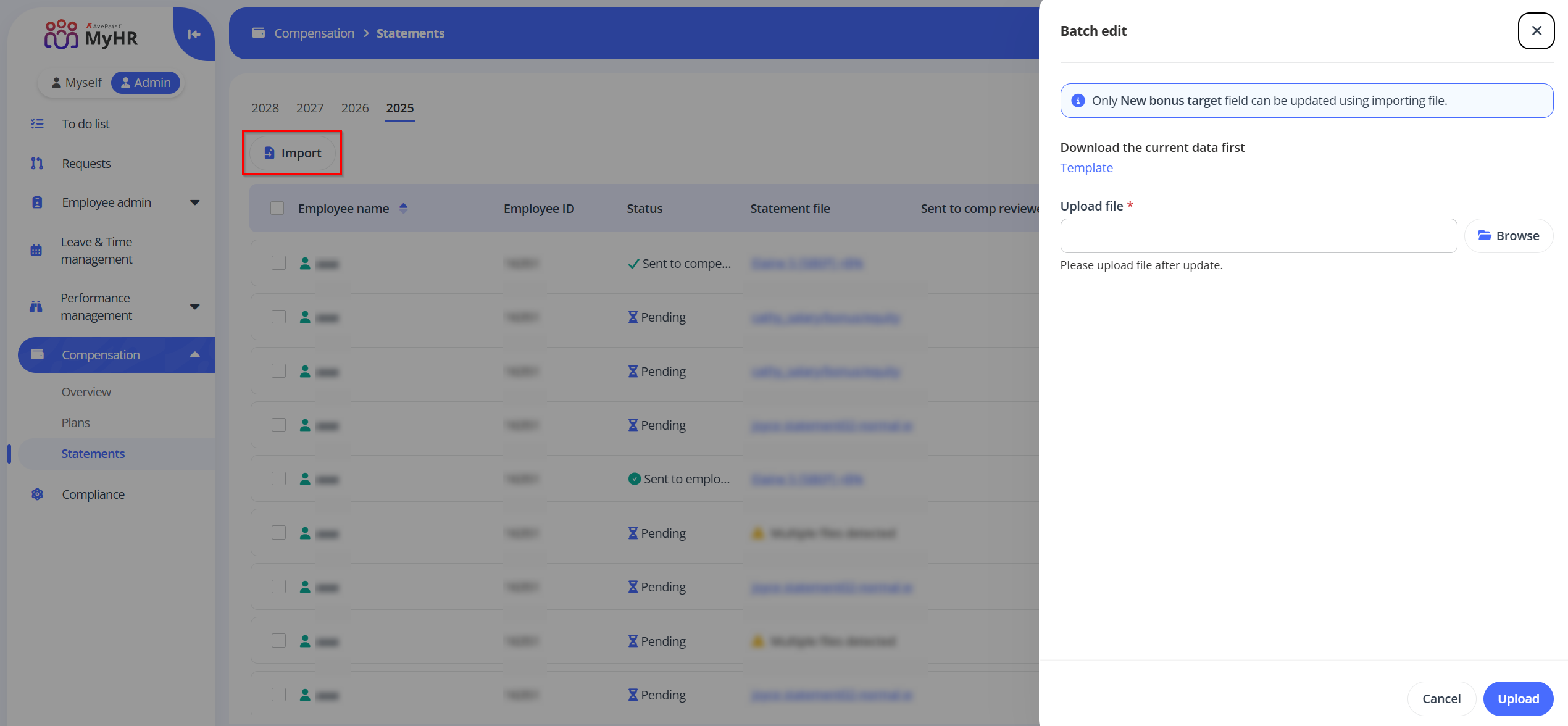
Batch edit statements - The values of New bonus target can be updated through batch-edit. Click Import on the command bar. On the Batch edit panel, click the Template link to download the template file, update the template file as needed, and then upload the updated file.
-
Manual override - For employees whose statements are managed offline (sent to employees offline), you can click Manual override to manually mark statements with a status of Pending or Sent to compensation reviewer as Manual override. You can select multiple statements to update.