
Home > How to Configure Announcements?
How to Configure Announcements?
Announcements help HR teams share important updates with employees in a timely and consistent way. In this topic, you will learn how to create, copy, preview, edit, delete, and withdraw announcements, as well as configure display settings and target the right audience.
To create a new announcement, you can create from scratch or copy an existing announcement. For details, refer to:
For the existing announcements, you can perform the following actions:
-
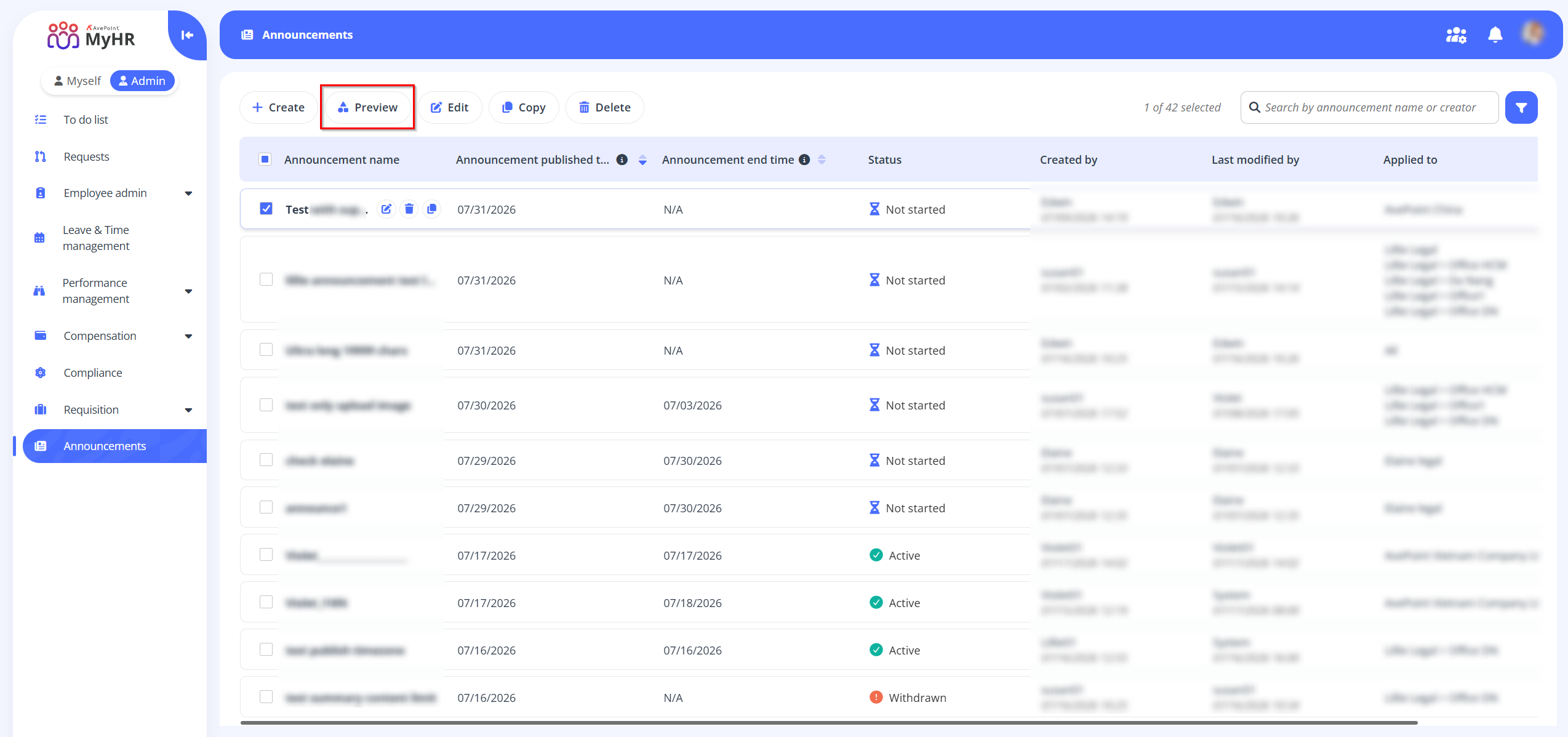
Preview - To preview an announcement, select an announcement and click the Preview button on the command bar, or you can click the Preview button to preview an announcement when you are viewing the announcement details.
-
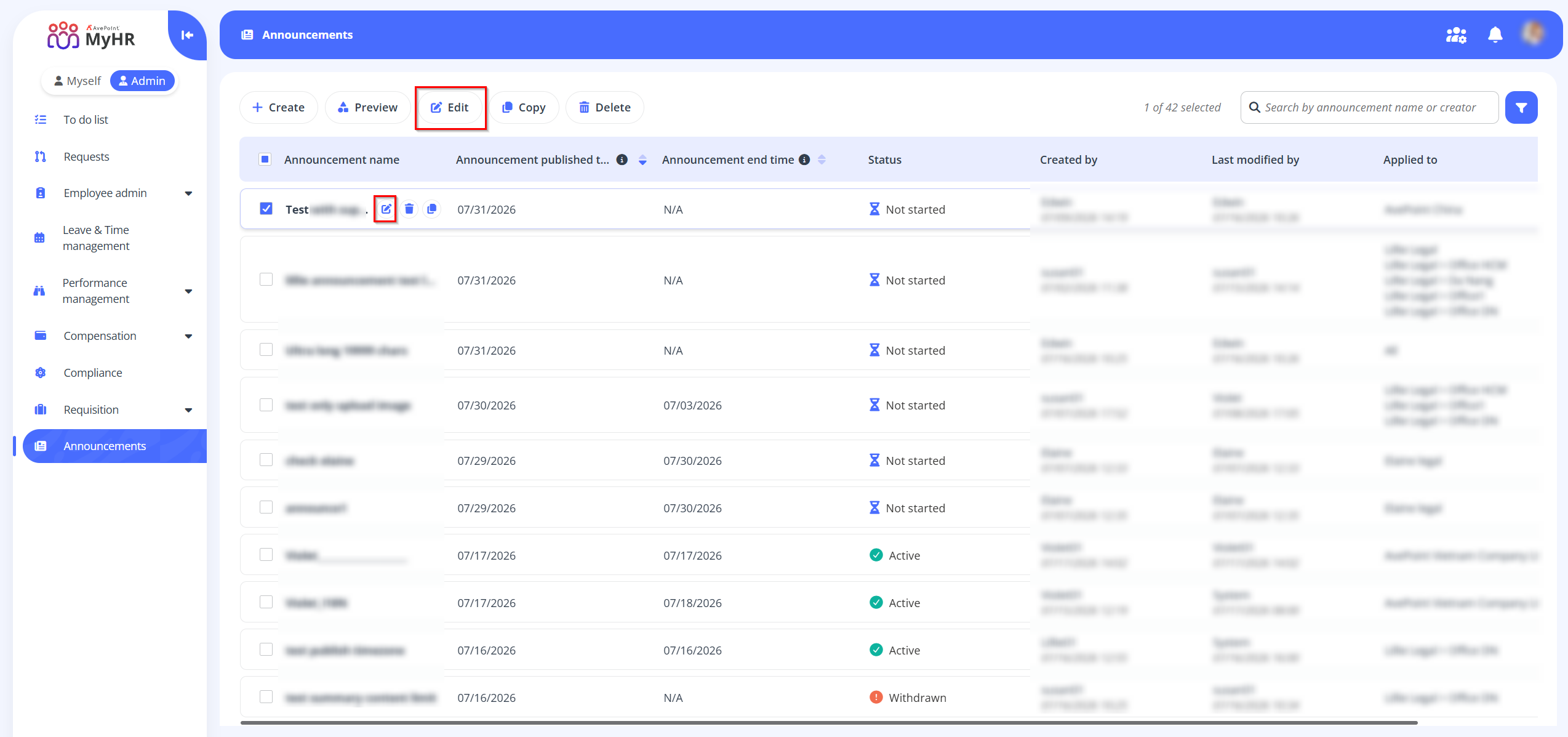
Edit – To edit an announcement, select an announcement and click the Edit button on the command bar, or you can click the Edit button when hovering over it. You can also click the Edit button to edit an announcement when you are viewing the announcement details.
-
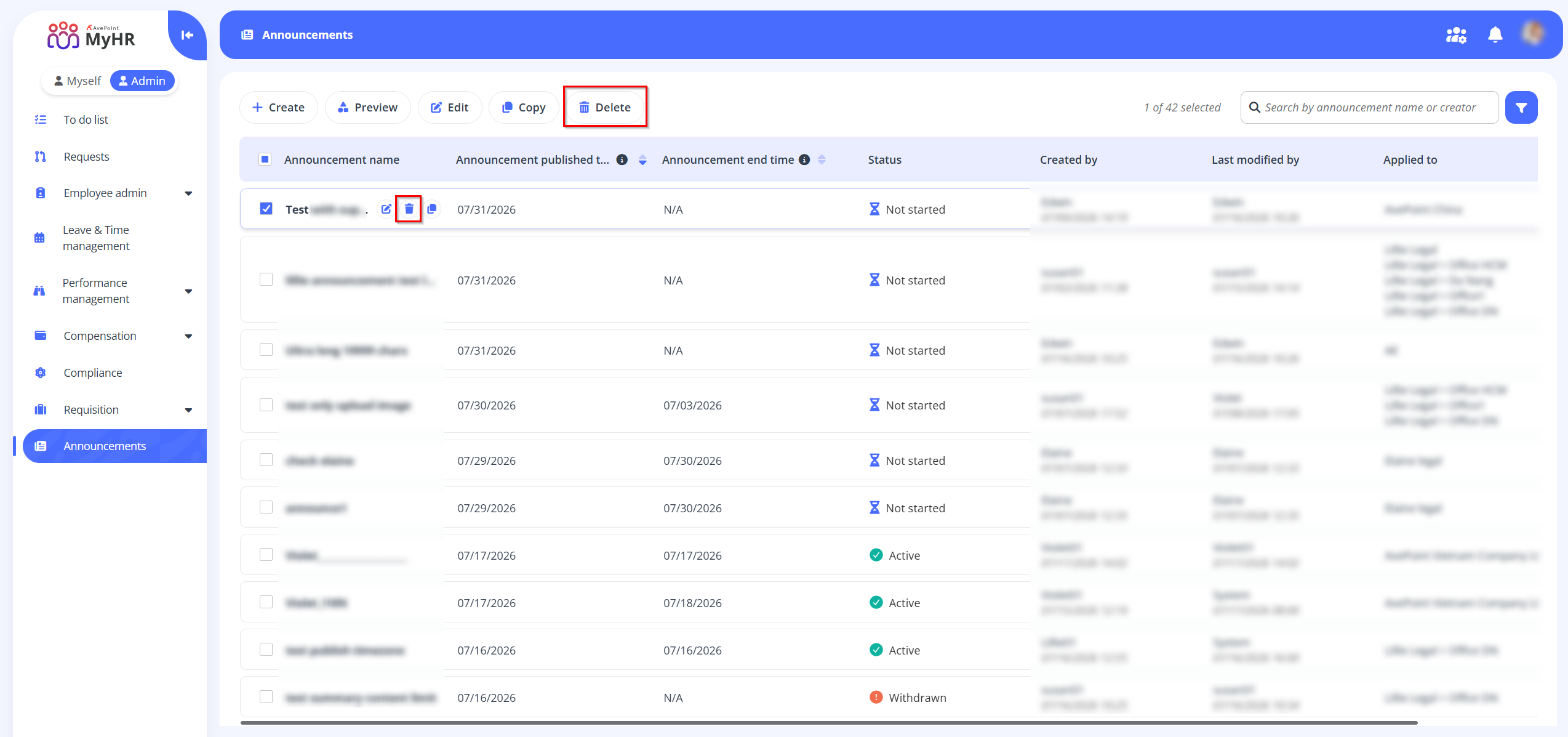
Delete – To delete an announcement, select an announcement and click the Delete button on the command bar, or you can click the Delete button when hovering over it. You can also select multiple templates to delete. Only Not started announcements can be deleted.
-
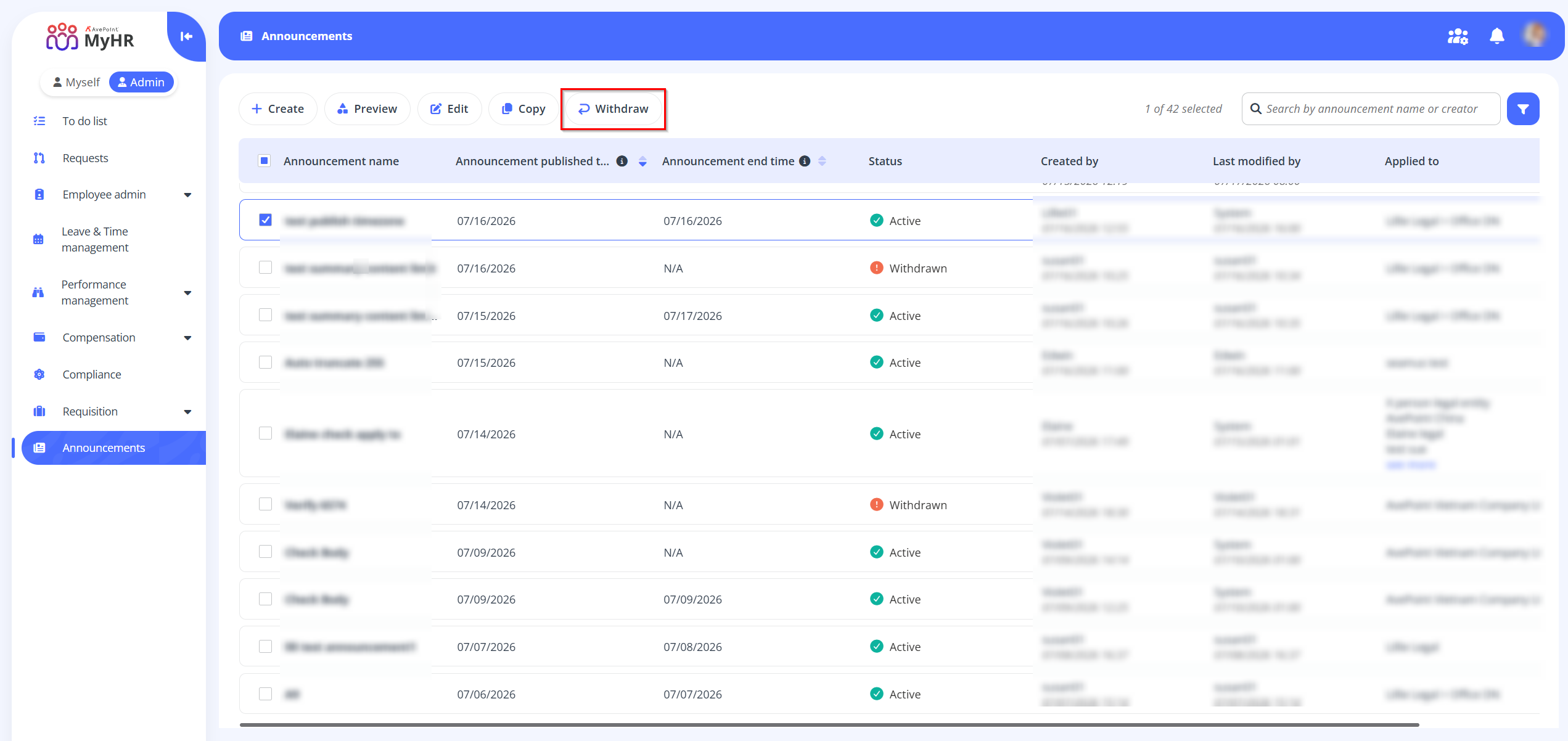
Withdraw - To withdraw an active announcement, select an announcement and click the Withdraw button on the command bar.
Create a New Announcement
Follow the steps below to create a new announcement:
-
Click Announcement in the left navigation pane.
-
Click the Create button on the command bar.
-
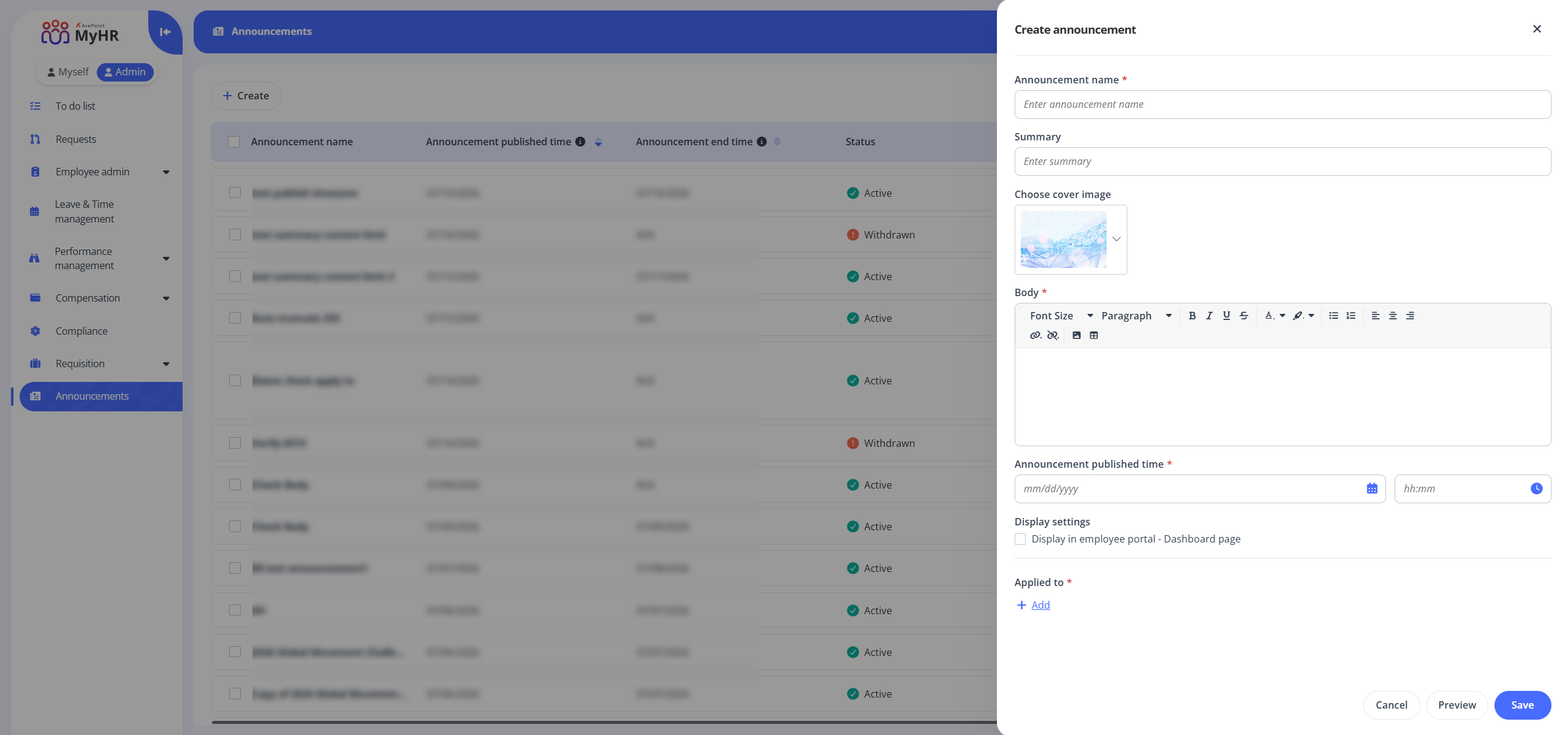
In the Create announcement panel, complete the following settings:
-
Announcement name - Enter a name for the announcement you are creating.
-
Summary - Enter a summary if needed. This field is optional.
-
Choose cover image - Select a cover image for the announcement.
-
Body - Enter the announcement body content.
-
Announcement published time - Select a published time for the announcement.
-
Display settings - Configure whether to display the announcement on Employee portal > Dashboard page. If enabling this option, select an end time for the announcement.
-
Applied to - Click Add to define the applied scope. In the Apply to panel, select the specific organizations, legal entities, or offices as needed, and click Apply.
-
-
Click Preview to preview the announcement.
-
Click Save to save this announcement.
Copy an Announcement
Follow the steps below to copy an announcement:
-
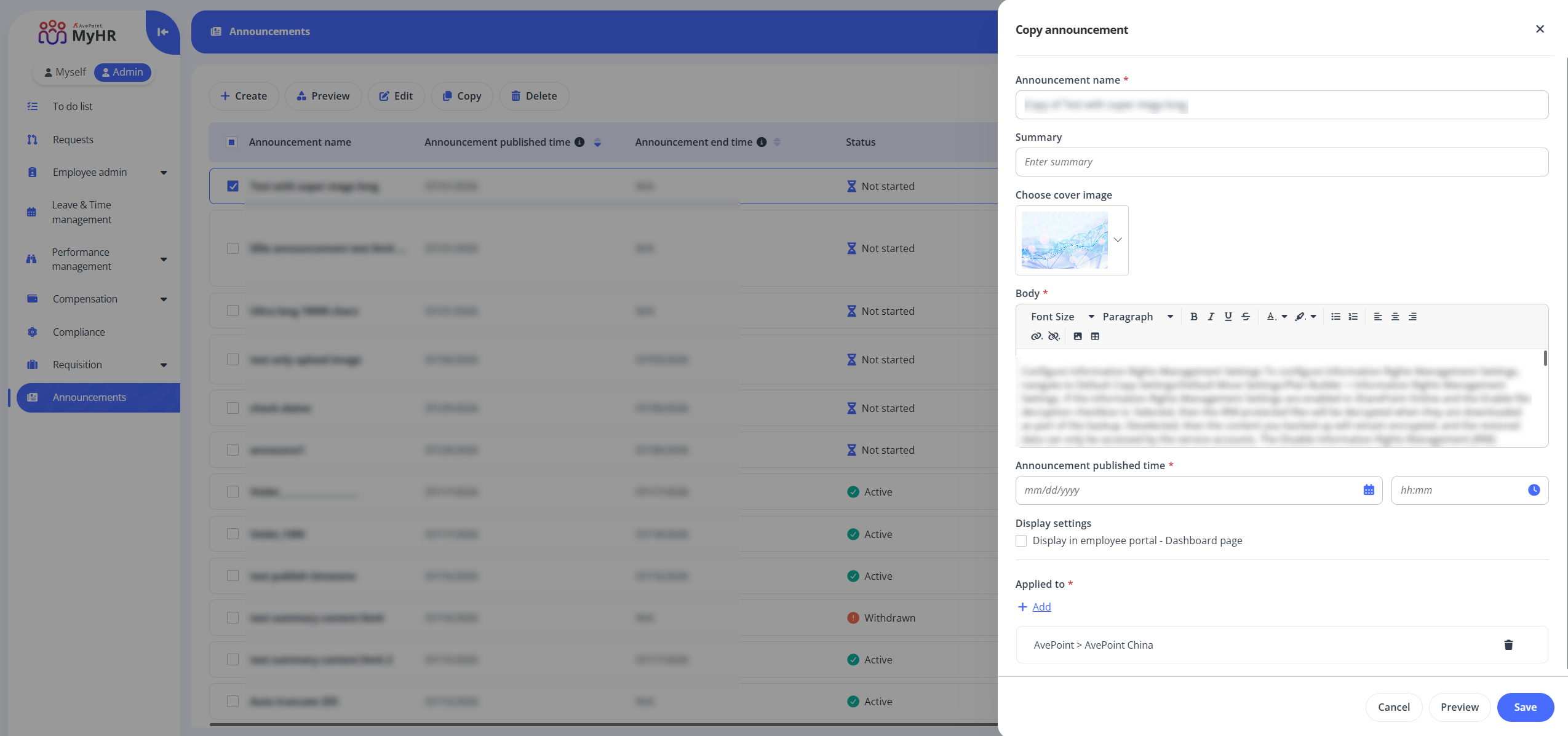
Select an announcement and click Copy on the command bar, or you can click the Copy button when hovering over it.
-
In the Copy announcement panel, edit the announcement information as required.
-
Click Save to save this announcement.