
Home > Configuration Portal > Compensation Management > Manage Compensation Plans > Create a New Compensation Plan
Create a New Compensation Plan
Follow the steps below to create a new compensation plan:
-
Navigate to Compensation > Plans.
-
Click Create on the command bar.
-
On the Create compensation plan page, complete the following settings:
-
Basic information – Complete the following required information:
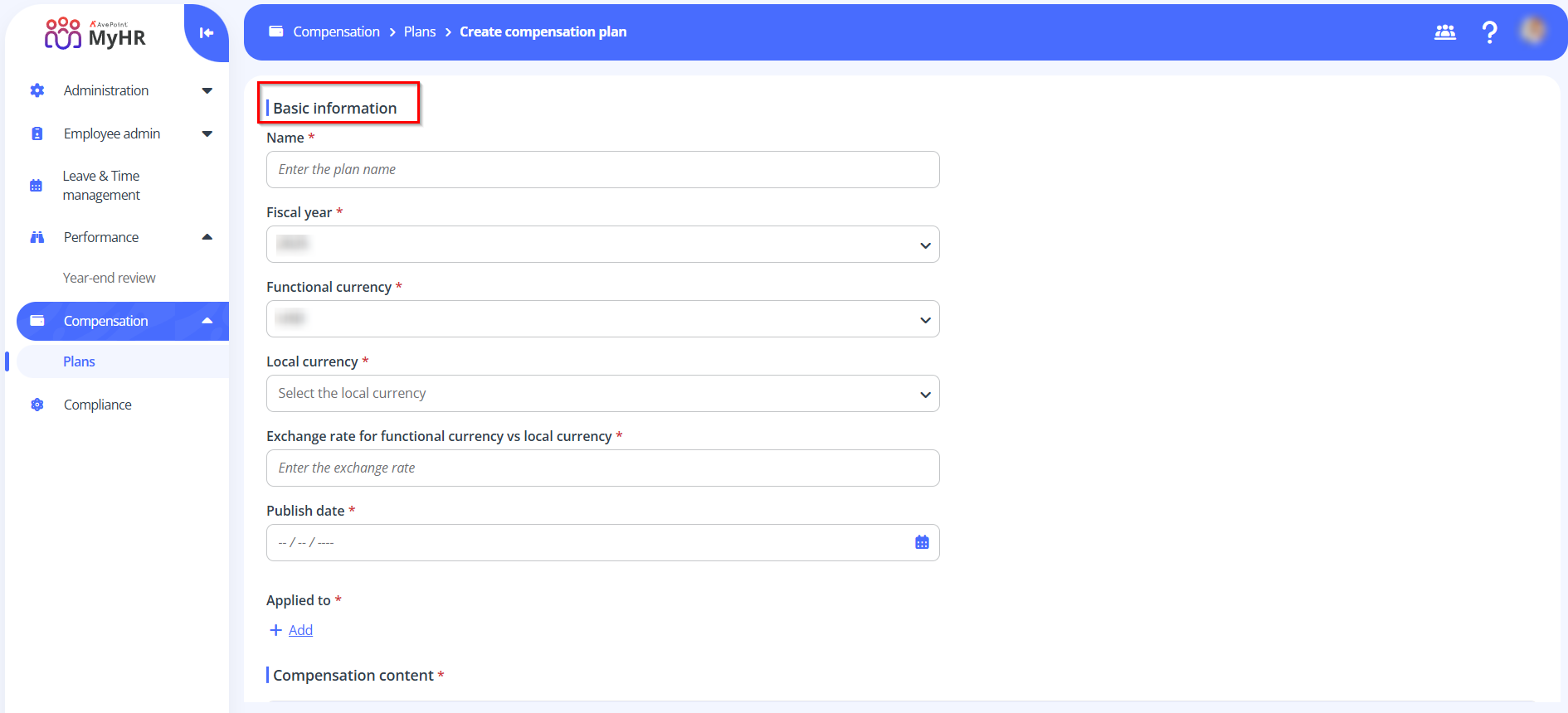
- Name – Enter a name for the compensation plan you are creating.
- Fiscal year – Select a fiscal year.
- Functional currency – Select a functional currency.
- Local currency – Select a local currency.
- Exchange rate for functional currency vs local currency – Specify the exchange rate between the functional currency and the local currency.
- Publish date – specify a publish date for the compensation plan.
- Applied to – Click Add link to define the applied scope. In the Apply to panel, select the specific organizations, legal entities, or offices as needed, and click Apply.
- Advanced settings - This section will be displayed after Applied to is configured. Select Set advanced application rules option to define rules using Annual On-Target Compensation conditions.
-
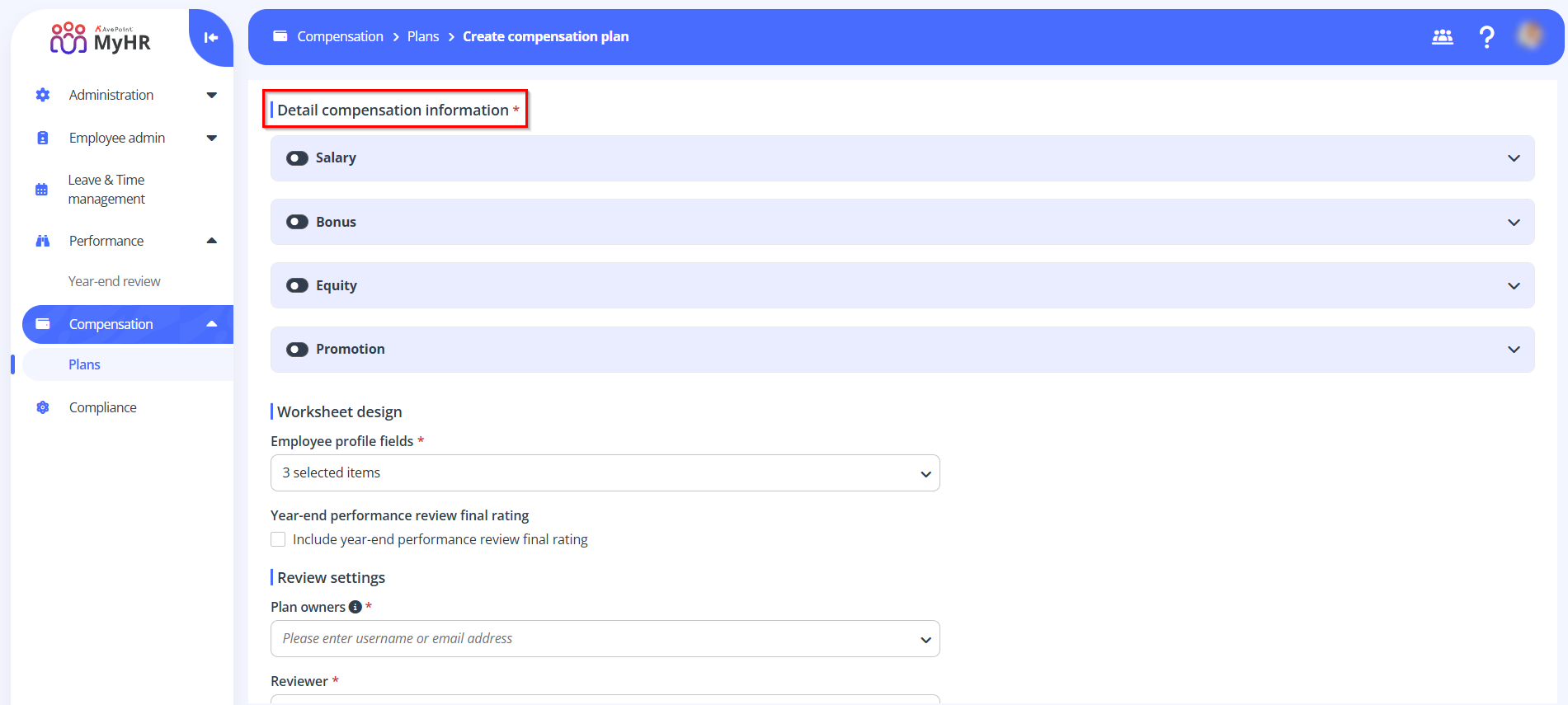
Detail compensation information – Configure the compensation content which will be included in the compensation worksheet fro review.
-
Salary – Turn on the Salary switch and complete the following settings:
-
Target settings – Fill in the Salary increase budget percentage and Promotion/Adjustment budget percentage to get the total salary increase budget percentage.
-
Eligibility settings – Specify the eligible scope.
- All employees – All employees are eligible to the compensation plan.
- Specific employees by condition – Specific employees are eligible to the compensation plan. You can configure the rule conditions for the employees. Click Add to add multiple rules to filter employees.
-
Profile update settings – Select a change reason and specify an effective date.
-
-
Bonus – Turn on the Bonus switch and complete the following settings:
-
Target settings – Fill in the total budget percentage.
-
Eligibility settings – Specify the eligible scope.
- All employees – All employees are eligible to the compensation plan.
- Specific employees by condition – Specific employees are eligible to the compensation plan. You can configure the rule conditions for the employees. Click Add to add multiple rules to filter employees.
-
Profile update settings – Select a change reason and specify an effective date.
-
-
Equity – Turn on the Equity switch and complete the following settings:
-
Target settings – Fill in the total budget percentage.
-
Eligibility settings – Specify the eligible scope.
- All employees – All employees are eligible to the compensation plan.
- Specific employees by condition – Specific employees are eligible to the compensation plan. You can configure the rule conditions for the employees. Click Add to add multiple rules to filter employees.
-
Profile update settings – Select a change reason and specify an effective date.
-
-
Promotion – Turn on the Promotion switch and complete the following settings:
- Promotion related fields – Select which promotion related fields to include in the compensation worksheet.
- Profile update settings – Select a change reason and specify an effective date.
-
-
Worksheet design – Configure the settings for compensation worksheet.
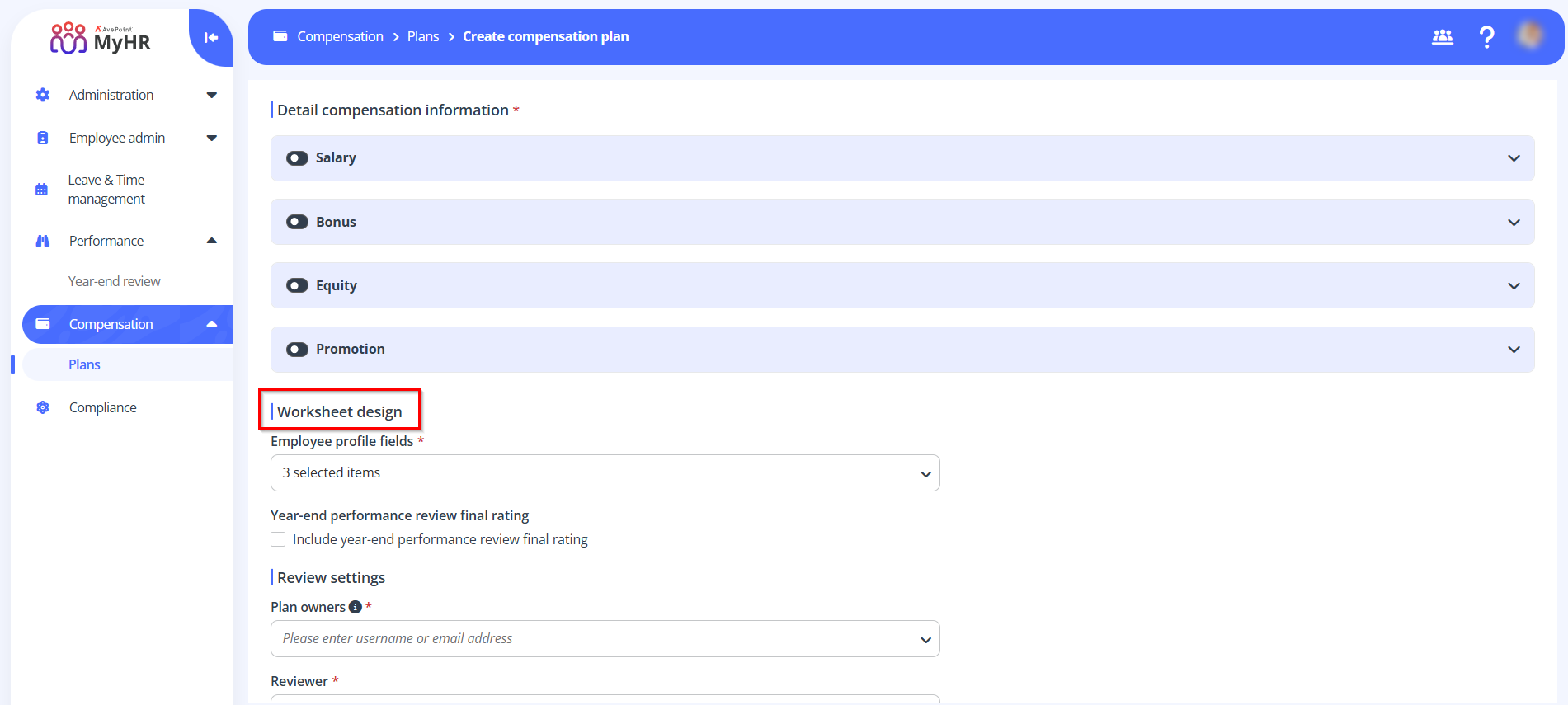
- Employee profile fields – Select which employee profile fields to include in the compensation worksheet.
- Year-end performance review final rating – Select the Include year-end performance review final rating option to add the final rating from the year-end performance review to the compensation worksheet.
-
Review settings – Complete the following settings:
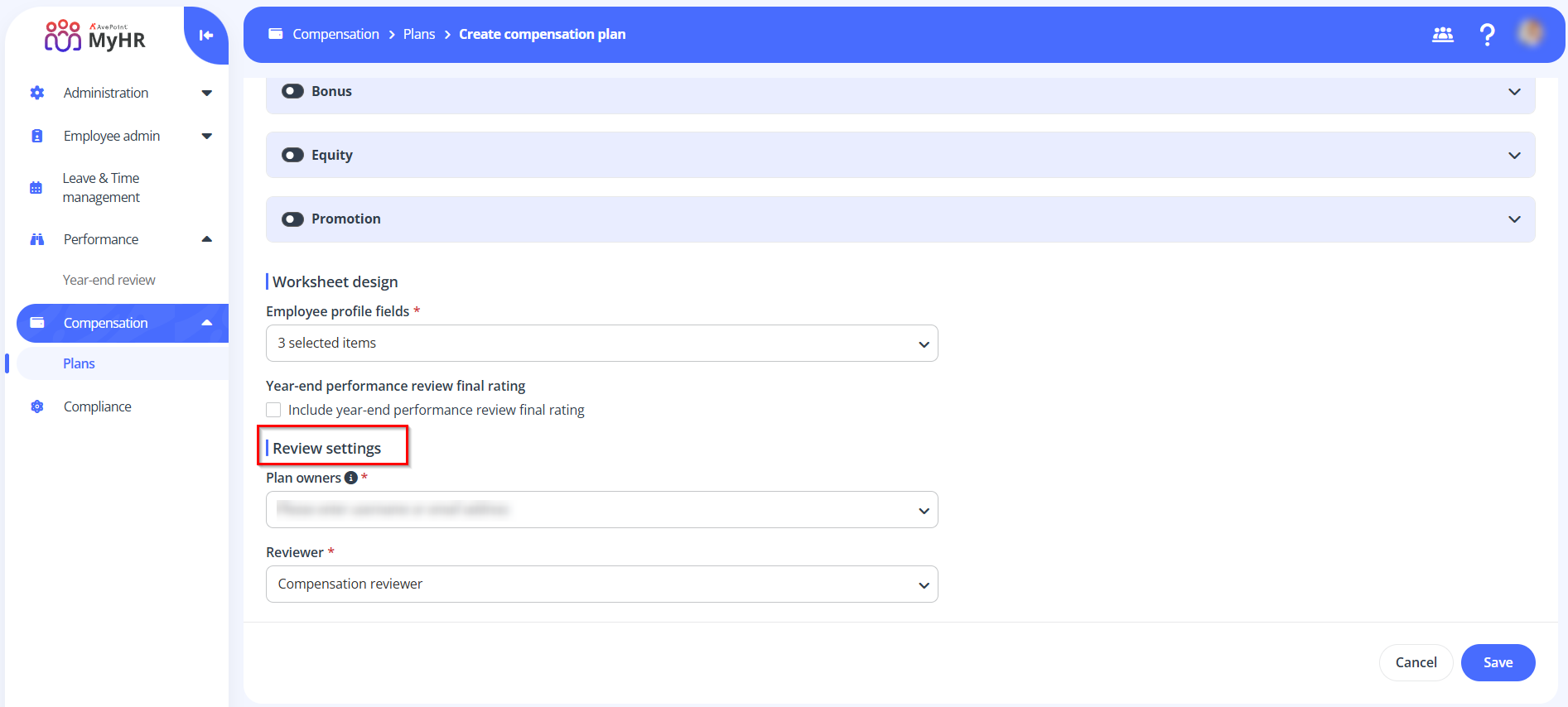
- Plan owner – Select a role from the drop-down list to assign as the owner of the compensation plan.
- Reviewer – Select Compensation reviewer from the drop-down list.
-
-
Click Save to save the compensation plan.