
Home > Configuration Portal > Email Template Management > Create a New Email Template
Create a New Email Template
Follow the steps to create a new email template:
-
Navigate to Administration > Email template.
-
Click the Create button on the command bar.
-
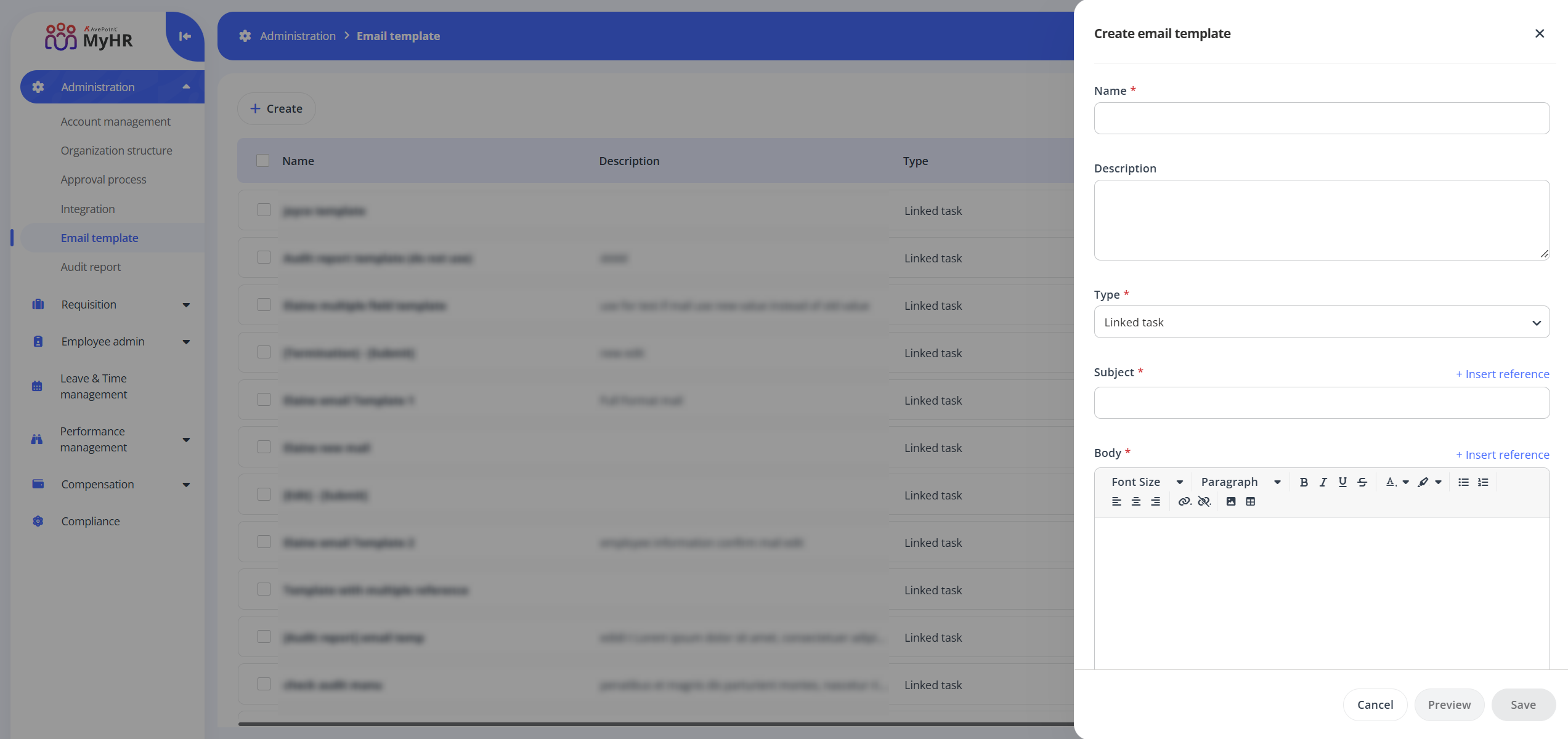
In the Create email template panel, complete the following settings:
-
Name - Enter a name for the email template you are creating.
-
Description - Enter a description if needed. This field is optional.
-
Type - Currently, only the Linked task is supported.
-
Subject - Enter a subject, or click Insert reference to add field references to the subject. You can insert any field configured in the All fields section. When these field references are used in an email template, each recipient will see their own corresponding field values populated in the email.
-
Body - Enter the email body content, or click Insert reference to add field references. You can insert any field configured in the All fields section. When these field references are used in an email template, each recipient will see their own corresponding field values populated in the email.
-
-
Click Preview to preview the template.
-
Click Save to save this email template.